
Vlog One Studio
What will you do with the time you save?
Vlog One Studio (VOS) software works with many types of video and audio equipment from many manufacturers, allowing quick, easy, and seamless integration into your existing content creation workflow.
Maximized Connectivity
HARDWARE
Cameras


VOS has been designed to work with a variety of cameras. If you already have video cameras in your current production system, they will most likely work with the VOS software. Or, if you are just starting a vlog or beginning to create online content, you can begin with a single camera like your phone, and add any additional hardware to your system whenever you want!
VOS works with the below cameras:
-
Any camera that can be connected to a computer with a USB cable and recognized as a camera source by Windows.
-
Any camera that can be connected to video capture devices and recognized as a camera source by Windows.


-
Software that will stream your phone cameras over a network, like DroidCam or NDI-HX apps.
-
Any IP camera that can be connected to your network using the below protocol/formats:
-
NDI or NDI-HX (recommended for minimal delay)
-
RTMP or RTSP
-


-
For network cameras, we recommend cameras with NDI-HX output. To control pan, tilt, and zoom over the network, the cameras must support VISCA over IP.
-
For PTZ (Pan, Tilt, Zoom) USB cameras, to control the pan, tilt, and zoom, the cameras must support VISCA (using a serial to USB adapter).
-
Cameras like Blackmagic, Canon, JVC, Sony, and other popular camera brands with HDMI output (so it can be connected to the video capture devices for streaming).


Direct connection of cameras to your computer or network removes the need for an external camera switcher. If you already have multiple cameras that are connected to an external switcher that you want to continue using, just connect the output of the switcher to the PC to use it as your live stream, and continue to use your switcher to change shots as you normally did with your previous streaming software.
Preview Your Shots and Control Your Content From a Phone or Tablet


Install the Vlog One Studio Presenter app on a mobile device (such as a Windows or Android phone or tablet) to see all of your camera shots to ensure your content is framed exactly how you want. All you need to do is connect the mobile device to the same network as the computer running Vlog One Studio Capture, and the programs will automatically communicate with each other.
If presenting content in-person, Vlog One Studio Capture easily connects to a projector or screen to display your content to both your in-person audience, and your remote, online audience, simultaneously.
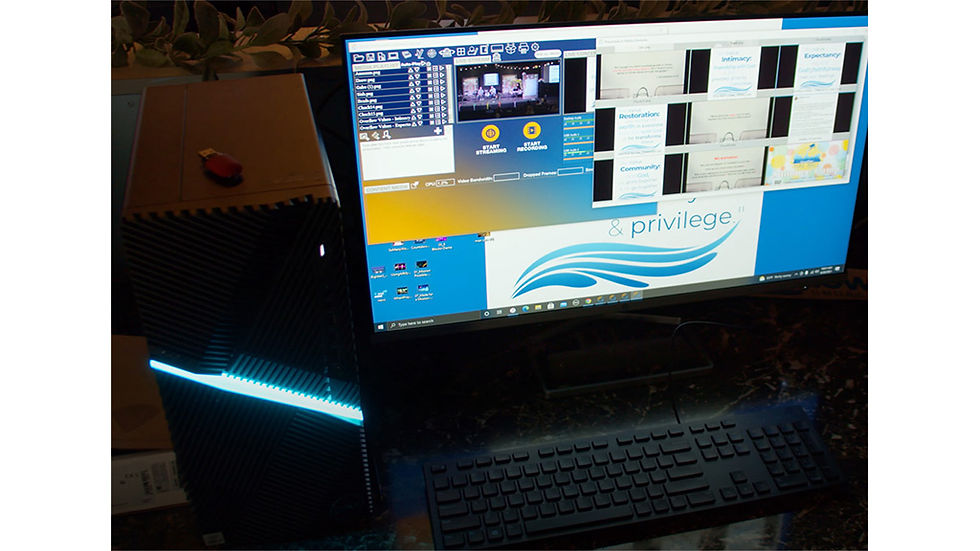
Desktop or Laptop PC


Vlog One Studio Capture runs on a Windows 11 laptop or desktop PC with the below minimum specs:
CPU: 2.4 GHz on 2 cores (3.0 GHz on 4 cores recommended)
System Memory (RAM): 8 GB (16 GB recommended)
Storage: 500 GB (or more for recording the stream on the PC)
Video card: 8 GB Dedicated or Integrated memory
Audio Source Connections


Audio can be connected to the Vlog One Studio Capture PC using any method recognized as an audio source by Windows.
In Vlog One Studio Capture, your content audio can come from several possible sources:
-
Up to 4 microphones connected directly to your Vlog One Studio Capture PC.
- Wireless lapel microphone receiver output (like DJI)
-
Your camera's built-in microphone
-
The output of an audio mixer
-
Audio files you play in Vlog One Studio Capture
Keyboard and Mouse

If you have multiple cameras connected to your computer and you choose not to use the autonomous camera switching features, manually switching camera shots is very easy - just use the mouse to click the shot in the camera window you want to use!
If you prefer to manually the control your PTZ camera(s), the Vlog One Studio Capture program allows easy remote control using the keyboard. Just press the camera number you want to control (1-4), then press the keyboard arrows to move the selected camera up, down, left, or right. Control the zoom on PTZ cameras by holding Shift, then press up or down. Camera switching and movement speed can also be controlled with the keyboard letters.